How to Connect Supabase to Claude: Official Connector Setup Guide (2026)
By Meg Faibisch Kuhn
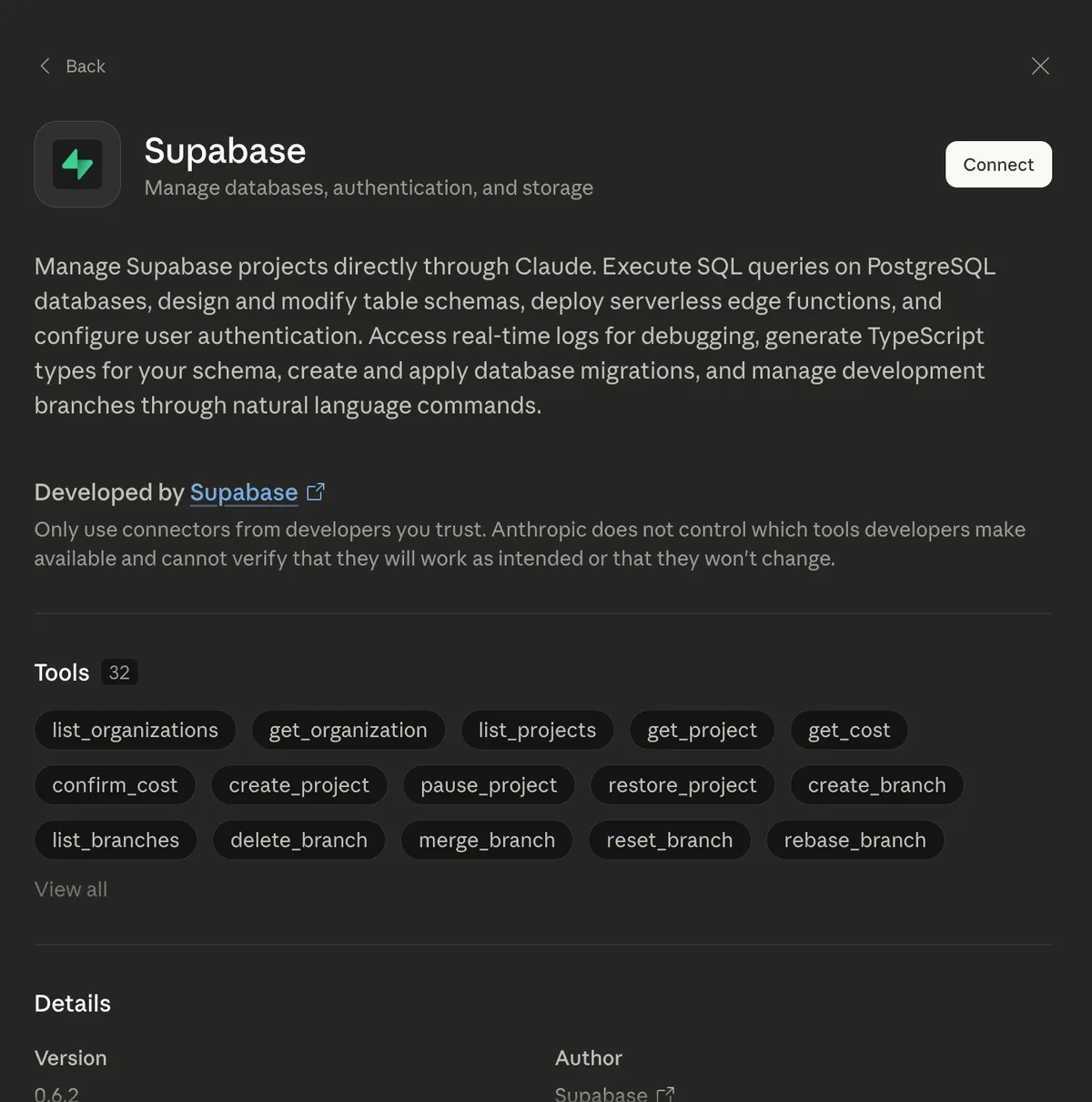
Supabase just quietly shipped something that changes how you build with Claude: an official Supabase connector that lets Claude talk directly to your Supabase project.
No config files. No personal access tokens. No MCP server setup. Just click Connect, authorize via OAuth, and Claude can create tables, run SQL queries, manage edge functions, and handle your entire Supabase backend — all through conversation.
I've been building directories and job boards with Claude Code and Supabase for months. This connector eliminates the most tedious part of the workflow: copying SQL between Claude and the Supabase dashboard.
Here's how to set it up.
How to Connect Supabase to Claude (Step by Step)
The entire setup takes about 60 seconds. You'll need:
- A Claude Pro account ($20/month) with the Claude Desktop app installed
- A Supabase account (free tier works)
Step 1: Open Claude Settings
In the Claude Desktop app, click the Settings icon (gear icon in the bottom left).
Step 2: Navigate to Connectors
In the settings menu, find and click Connectors. This is where Claude manages all its direct integrations with external services like Supabase.
Step 3: Search for Supabase
Type "Supabase" in the search bar. You'll see the official Supabase connector appear — it's developed by Supabase themselves and includes 32 tools for managing your projects.
Step 4: Click Connect
Click the Connect button. This opens a Supabase authorization page in your browser.
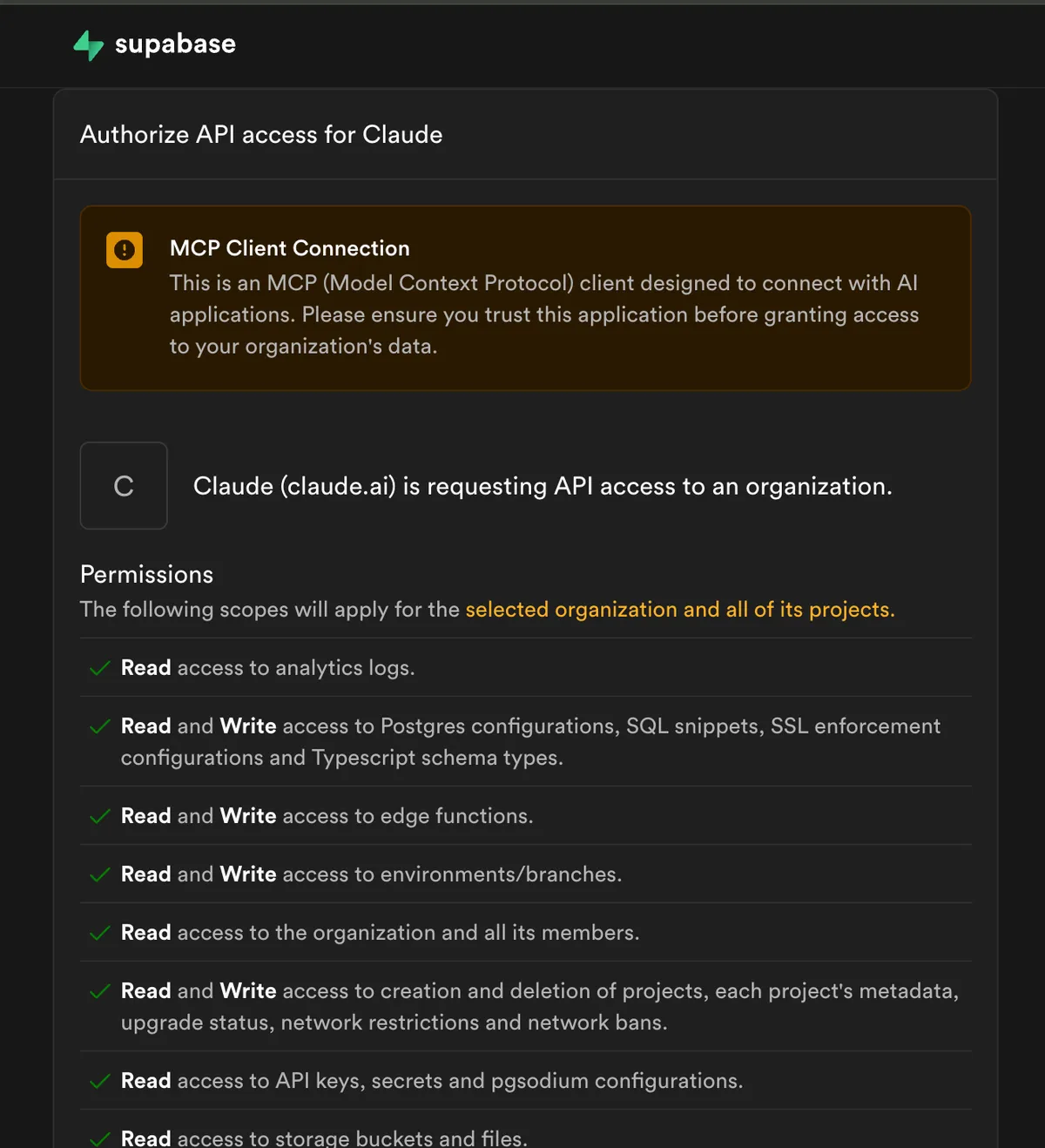
Step 5: Authorize Claude to Access Your Supabase Account
You'll see a permissions screen from Supabase showing exactly what Claude will be able to access:
- Read access to analytics logs
- Read and Write access to Postgres configurations, SQL snippets, and TypeScript schema types
- Read and Write access to edge functions
- Read and Write access to environments and branches
- Read access to your organization and members
- Read and Write access to project creation, metadata, and settings
- Read access to API keys, secrets, and pgsodium configurations
- Read access to storage buckets and files
Select the Supabase organization you want to connect, then click Authorize Claude.
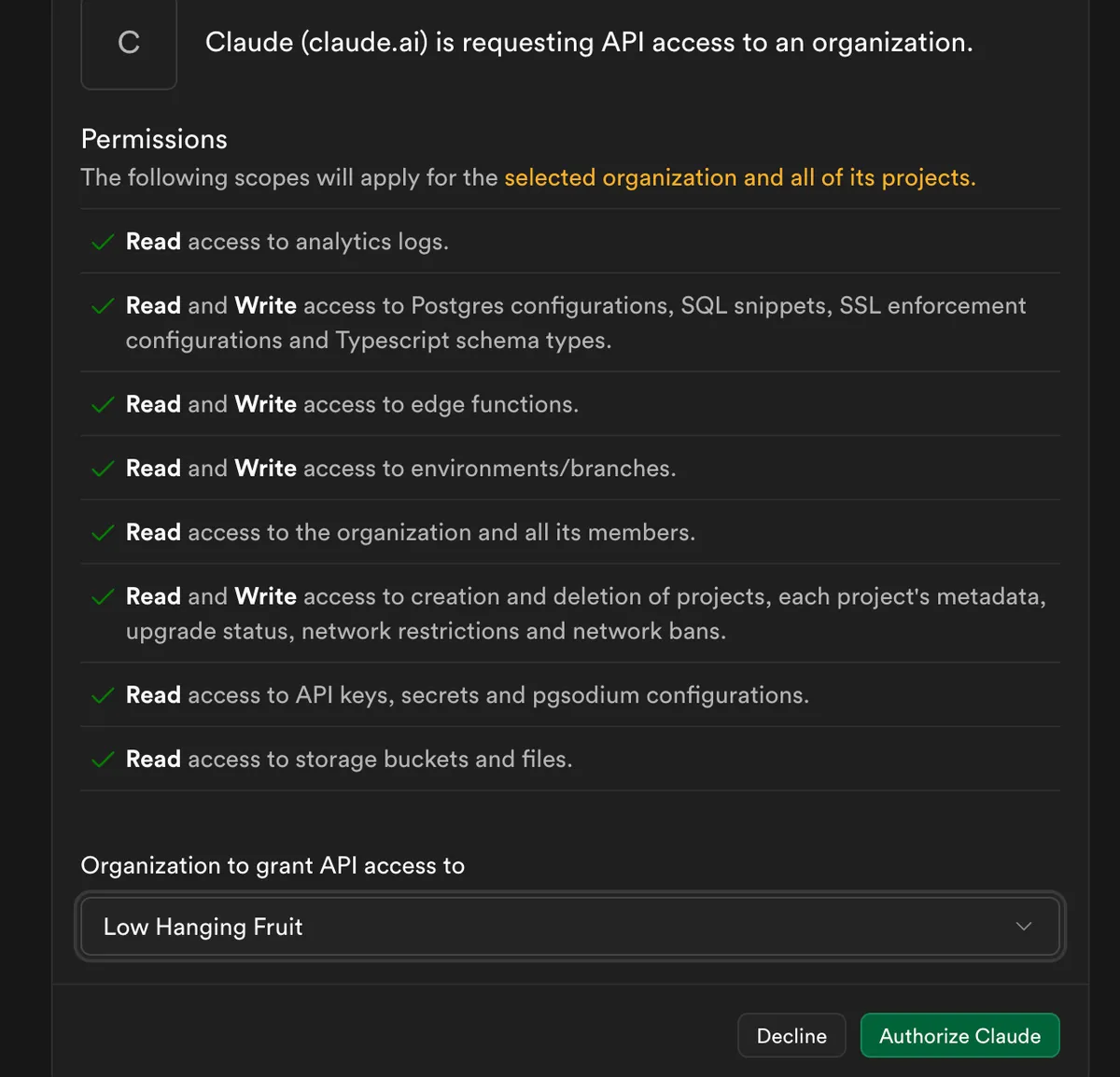
That's it. Your Supabase account is now connected to Claude.
What Can You Do With the Supabase Claude Connector?
Once connected, you can talk to Claude naturally and it interacts with your Supabase project directly. Here are real examples of what you can do:
Create and Manage Database Tables
"Create a listings table with columns for name, description, website URL, category, featured status, and submission date"
"Add a full-text search index on the name and description columns"
"Show me all listings submitted in the last 7 days that haven't been approved yet"
Deploy Supabase Edge Functions
"Create a Supabase edge function that sends a welcome email via Resend when a new user signs up"
"Deploy the payment webhook handler to my Supabase project"
Manage Supabase Projects
"Create a new Supabase project called 'yoga-directory' in the US East region"
"List all my current Supabase projects and their status"
"Show me the recent logs for my production project — I'm seeing errors"
Generate Schemas and Migrations
"Generate TypeScript types from my current database schema"
"Create a migration that adds a 'pricing_tier' enum column to the listings table"
Why the Supabase Connector Matters for Non-Technical Builders
If you've followed any of my directory building or job board guides, you know the workflow: you describe what you want to Claude, and Claude writes the code.
The friction point was always the database. You'd ask Claude to create a SQL schema, then copy it to the Supabase dashboard, run it, check for errors, go back to Claude... it worked, but it was clunky.
Now Claude just does it. You say "create the tables for a job board" and Claude creates them directly in your Supabase project. No middle step. No copy-pasting.
This is especially powerful if you're not technical. You don't need to understand SQL syntax or navigate the Supabase SQL editor. Claude handles the translation between what you want and what the database needs.
Supabase Connector vs. Supabase MCP Server: Which Should You Use?
You might have seen tutorials about setting up the Supabase MCP server manually. Here's how the official connector compares:
| Official Supabase Connector | Manual MCP Server Setup | |
|---|---|---|
| Setup time | ~60 seconds | 5-10 minutes |
| Authentication | OAuth (click to authorize) | Personal access token |
| Configuration | None needed | Edit JSON config files |
| Security | OAuth scoped permissions | Token with full access |
| Updates | Automatic | Manual |
| Works in | Claude Desktop app | Claude Code CLI |
My recommendation: If you're using the Claude Desktop app (which most people are), use the official connector. It's easier, more secure, and stays updated automatically.
If you're a developer using Claude Code in the terminal, the manual MCP setup still works — but the connector is the simpler option for most people.
Tips for Getting the Most Out of the Supabase Connector
Start with schema design. Before writing any application code, use Claude + the Supabase connector to design your database. Say something like: "I'm building a directory for yoga studios. What tables do I need and what should the schema look like?" Claude will create the tables directly in your Supabase project.
Use it for debugging. When something's broken, say "check the logs for my project and tell me what's going wrong." Claude can pull real-time Supabase logs and diagnose issues without you touching the dashboard.
Combine it with Claude Code for full-stack development. The connector handles your database. Claude Code handles your application code. Together, you can build a full-stack app entirely through conversation. This is how I build my directory sites and it's the fastest workflow I've found.
Generate TypeScript types automatically. After creating your tables, ask Claude to "generate TypeScript types from my Supabase schema." This keeps your frontend code type-safe without manually writing interfaces.
What's Next for Claude and Supabase
This connector is part of a bigger trend: AI tools getting direct access to the services you already use. Supabase is one of the first to ship an official Claude connector, and I expect more developer tools to follow.
If you're building with Claude and Supabase — whether it's a directory, a job board, or something else entirely — go connect this right now. It takes 60 seconds and immediately makes your workflow faster.
Settings → Connectors → Supabase → Connect. Done.